PowerTOP - making better use of the laptop battery
Translation of the original in Catalan. Read it in: CatalàCastellano
Almost a year has had to go by for me to start making the most of the laptop. Not because of how complicated it is but because I haven't devoted time to it for one reason or another, well then, in my eagerness to gradually take advantage of everything the Dell XPS m1330 offers me I've set about tuning it a little so that the battery lasts me longer. I often work plugged in at home or at work and therefore, I don't need to use either of the two batteries I have. But lately I've got into the habit of reading feeds from bed first thing and of writing the odd post from the same place. So, in these cases and to speed things up I use the battery.
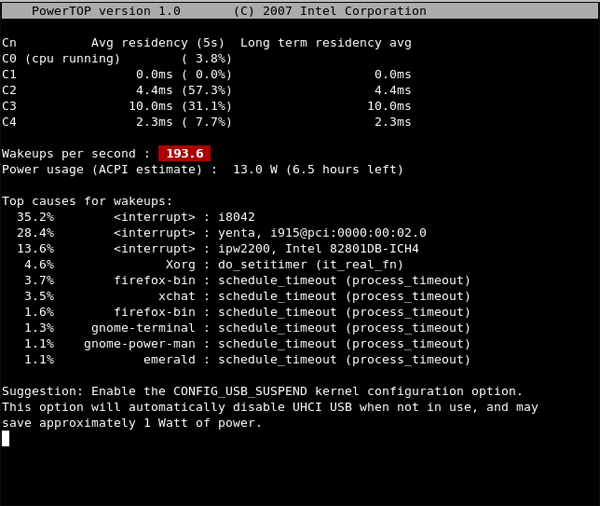
A tool that has surprised me a great deal when it comes to studying which parts of the laptop consumed the most and how to stop that from happening has been PowerTOP, this tool has a feature that I've really loved. Apart from all the technical information it gives us to analyse the consumption, at the bottom of the screen it shows us suggestions on how we can improve our machine's performance: changing certain kernel options, modifying /proc registers, stopping some daemon that isn't vital, disabling devices like bluetooth, wifi or ethernet if we're not using them... etc. But the best thing is that in some cases it doesn't only inform us of what we have to do or can do, but it also makes the process easier for us through shortcut keys. For example, it recommends that you turn off bluetooth and if you press 'B' it does it for you.
As for the rest of the information presented on the tool's screen we can find three large distinct areas of the screen, at the top there are the 'C' states, basically C0 is the state in which the CPU is executing some command and the other states are different levels of IDLE. Obviously the more time we spend in the C3 state the less we're using the CPU and the less we consume.
Below we have the number of 'wakeups' the CPU receives per second, that is, the number of times some process forces the CPU to execute some command. Obviously the lower this number is the less CPU we'll consume, that's directly related to the 'C' states mentioned before, of course.
Lastly at the bottom of the screen we have a list of the 10 processes that generate the most 'wakeups', here we can see which parts of the laptop are consuming the most. In my case 'firefox', the 'nvidia' graphics card, 'X' and 'wifi'. It's important to note that when we talk about processes they don't have to be system processes, but they can be interrupts, parts of the kernel, etc.
Another one of these simple, powerful and very useful ones.
NOTE from Elri (2008/12/15): he tells me by email that a good option to not wake the CPU up so much on a Dell XPS m1330 like the one I have is to add this to the 'Screen' section:
Option "OnDemandVBlankInterrupts" "True"1 comment
Comments from the old blog, as they were written. Comments are closed.
roine
L'he estat provant aquest cap de setmana i m'ha estat molt útil, a l'igual que molts dels teus comentaris.
Et llegeixo des de fa uns mesos i n'aprenc molt.
Moltes gràcies per ensenyar-nos.
Segueix igual.