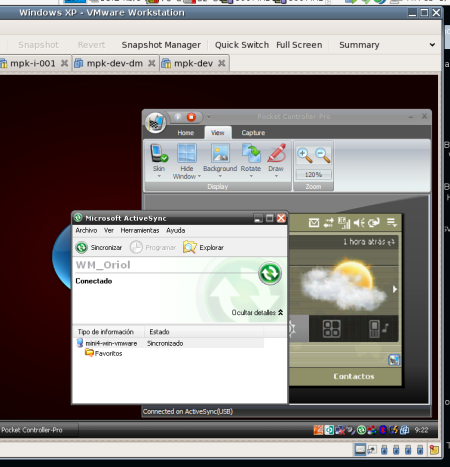
HTC Kaiser and Artermis on virtualized WinXP (VMWare Workstation 6)
Translation of the original in Catalan. Read it in: CatalàCastellano
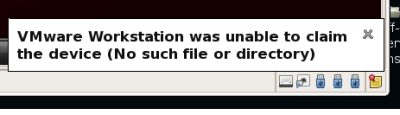
The working operating system, or host operating system of the machine I usually use, as you know, is a Linux, specifically a Gentoo. Well then, when installing a WinXP as a guest system in a VMWare virtual machine many of the USB devices of my laptop are recognized directly. For example, the webcam, the fingerprint reader or the internal 3G modem. That doesn't happen when connecting either of the two smartphones I have, the HTC Kaiser or the Artemis, VMWare gave me the error: VMWare Workstation was unable to claim the device (No such file or directory).
After a lot of searching through forums and similar places I found a simple hack that solves the problem for me (sorry but I don't remember the link because it was a comment in a forum). The exact reason why this happens isn't entirely clear to me but the trick works. So the activesync or the pocket controller pro recognize the phone perfectly and let me control and synchronize it from the virtual WinXP. Which, on the other hand, as I mentioned in the article about how to boot the WinXP from the other partition while we are in Linux, lets me avoid having to maintain two WinXP installations in parallel, since the virtual version and the one running on the host are the same.
Well then, to the point, what you have to do is find where your device is connected. Running an lsusb you can see something like:
# lsusb
...
Bus 005 Device 004: ID 0bb4:0b0b High Tech Computer Corp.
...
Now we know it's on Bus 5 but we still don't know on which port or on which PCI that bus is connected. Let's find out the ID of the PCI where Bus 5 is:
# find /sys/devices/ -name "usb5"
/sys/devices/pci0000:00/0000:00:1d.0/usb5
We already know the PCI and the USB bus where the device is connected, now we only need to know which port it uses. To do this what we'll do is look for the idProduct and the idVendor of the HTC Kaiser, we get this from the lsusb output, they are the hexadecimal numbers separated by colons. So, my idProduct: 0b0b and the idVendor: 0bb4. With this data what I do is go into the directory of the bus we have located and launch a search over the files that contain this data to locate in which port of the bus we have the device connected:
# cd /sys/devices/pci0000:00/0000:00:1d.0/usb5
# grep -ri 0b0b $(find . -name "idProduct")
./5-1/idProduct:0b0b
# grep -ri 0bb4 $(find . -name "idVendor")
./5-1/idVendor:0bb4
As we can see in both cases the files that contain this information are in the 5-1 directory, that is, our phone is connected at /sys/devices/pci0000:00/0000:00:1d.0/usb5/5-1/. A directory where we'll find the bConfigurationValue file which is completely empty. Well then, all we have to do is put a 1 in it, for example like this:
# echo 1 > /sys/devices/pci0000:00/0000:00:1d.0/usb5/5-1/bConfigurationValueThen we make sure we have the device associated with the virtual machine and we'll see that the error message disappears and WinXP detects the new hardware connected.
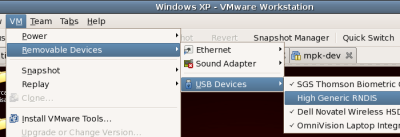
Finally here we have the link working: