VMWare: booting the WinXP on the other HD partition from Linux
Translation of the original in Catalan. Read it in: CatalàCastellano
By now everyone knows VMWare; personally I've been using the workstation version on my laptop for quite a while and some clients have the server one. Beyond the usual things you can read in the product's official documentation and in complementary products such as VMWare converter, which I mentioned a while ago, you can do some other fancy tricks with this product.
There are several howtos (for example, Convert Physical Windows Systems Into Virtual Machines To Be Run On A Linux Desktop) that explain how to convert a windows partition into a virtual disk that can then be used from the VMWare virtual machine. As I was just saying, that can be done with VMWare converter. The logical problems of this solution are that if our windows partition takes up 40Gb, obviously the virtual disk will take up the same. Besides, if our windows configuration changes (new settings, new programs, updates, etc.) the content of the virtual disk will obviously soon become outdated, or the other way round.
Well then, this past Sunday I configured VMWare so that from linux it would boot the WinXP I have on the other partition of the laptop's hard disk, all based on a small manual I found at Run Existing Windows installation With Vmware Player (local). As you can see, the idea is very appealing and it solves the problems I mentioned above that come from ultimately having two Windows on the same PC. Obviously this solution brings another difficulty, that of maintaining two hardware configurations (the real machine's and the virtual one's) in a single WinXP. Next I'll try to explain it to you and I'll also comment on how I solved it.
Next I'll repeat the steps described in the manual mentioned above so that you have a fully translated reference on how to do this. The steps to adjust VMWare really are very simple; the truly complex problems are more on the Windows side than in getting VMWare to boot from the WinXP partition. I'll adapt the explanation from the previous manual to my configuration, since I think that's where I can add some differential value.
Scenario
On the laptop I have the following partitions:
oriol@mini2 ~ $ /sbin/fdisk -l /dev/hda
Disk /dev/hda: 100.0 GB, 100030242816 bytes
255 heads, 63 sectors/track, 12161 cylinders
Units = cylinders of 16065 * 512 = 8225280 bytes
Device Boot      Start         End      Blocks   Id  System
/dev/hda1               1          63      506016   82  Linux swap / Solaris
/dev/hda2              64        4927    39070080   83  Linux
/dev/hda3   *        4928        8512    28796512+   7  HPFS/NTFS
/dev/hda4            8513       12161    29310592+   c  W95 FAT32 (LBA)
As you can see, and in short, basically I have a 39Gb linux partition, a 28Gb Windows one formatted with NTFS and a 29Gb FAT32 one that I use to store files. Basically that partition exists for historical reasons, from when NTFS support from linux was limited to reading. Today NTFS support from linux is both read and write, so it could be converted to NTFS. Even so, the recommendation is that you don't do it, especially because in case of disaster, if we had to use tools to recover the contents of the partition, those tools for NTFS are always more limited, or simply there are fewer tools on the market that support data recovery for NTFS.
As for the CPU and RAM they are 1.2GHz and 1Gb respectively. I have to admit the system really struggles to boot, especially because I assign 512Mb of RAM to the VMWare virtual machine (that is, WinXP). If we add to that the fact that I always have the habit of having a thousand programs open at once: FF2 with a thousand windows, evolution, openoffice, zend studio, etc. Obviously the whole system becomes very heavy. So I already have a good reason to buy a new laptop with a good CPU and loads of RAM.
Creating the VMWare virtual machine
I've created a new directory right where I have the rest of the virtual machines I use to work on the data partition, that is, from now on all the files I talk about are located in /mnt/fitxers/vmware/winxp-mini2. Into the directory we copy these two files: windows.vmdk and windows.vmx. What we need now is a tool like parted to find out some data about our partitions and the hard disk:
Information we have to collect from parted:
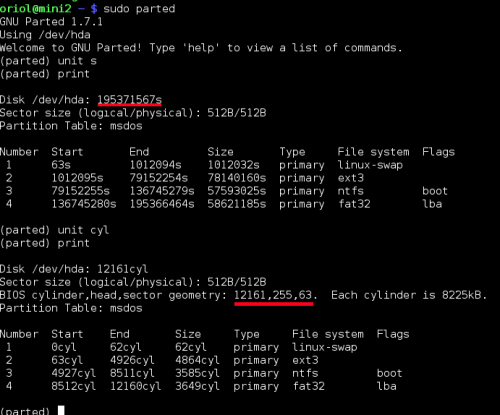
Now we have to edit windows.vmdk and change the 4 pieces of data that are selected below:
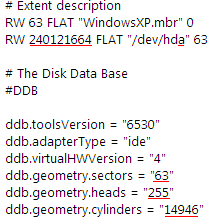
Where it says # Extend description, two lines below, notice that you have the number of sectors your disk has, underlined in red; well then, here you have to put the value parted gives you, in my case: 195371567s, and before copying it we subtract 63, which is what the disk's MBR takes up, so I have to put 195371504:
195371567 - 63 = 195371504The other three values marked in red in the windows.vmdk file are the cylinders, heads and sectors of your disk (cylinder,head,sector geometry); you can see these values in the second block of data we asked parted for, in my case: 12161,255,63.
So in my case the windows.vmdk file ends up like this:
# Disk DescriptorFile
version=1
CID=5aa3c828
parentCID=ffffffff
createType="fullDevice"
# Extent description
RW 63 FLAT "windowsxp.mbr" 0
RW 195371504 FLAT "/dev/hda" 63
# The Disk Data Base
#DDB
ddb.toolsVersion = "0"
ddb.adapterType = "ide"
ddb.virtualHWVersion = "4"
ddb.geometry.sectors = "63"
ddb.geometry.heads = "255"
ddb.geometry.cylinders = "12161"
We already have VMWare ready to boot our other partition with windows. Now the one that isn't ready is windows, since keep in mind that VMWare is a virtual machine that logically doesn't have the same hard as your machine. For example, it doesn't use the same graphics card, mouse controller, USB controllers, disk controllers, etc. In order to leave our windows partition intact, a good idea is to create a new profile, and in this new profile we can configure the hard of this virtual machine. We can also tell windows that every time it tries to boot it should ask us which profile we want to use, so depending on whether we do it from the PC or from the virtual machine, the hard will always be recognised automatically.
Configuring Windows to work with two different hardware profiles
Inside the control panel we click on the system icon, then we go to the hardware tab and click on the hardware profiles button:
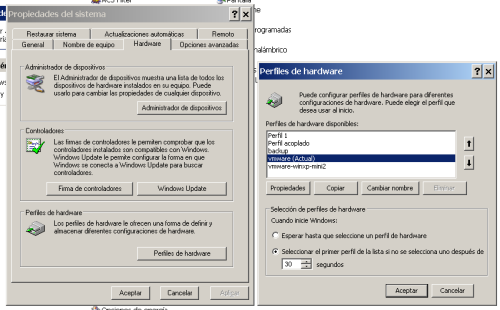
Here we copy the current profile and select the second radio button so we can choose the profile we want when booting windows. Once that's done we restart the machine and boot selecting the new profile; in my screenshot you can see that I've called this profile vmware, I've also made a backup of the default profile Perfil 1 and some other profiles I use for testing.
Once the machine has started with the vmware profile, a good piece of advice is to disable all the hard drivers you think might cause conflicts when starting with the virtual machine: hard disk controller, mouse (the synaptics driver doesn't work for me), graphics card, sound card, bluetooth, pcmcia, etc.
As you'll already know, to do this you have to go to the control panel, click on the system icon, on the hardware tab and finally on the administrador de dispositivos button. It's also a good idea to download VMWare Tools since they include some drivers you can update directly from here, doing the usual thing of updating the driver and going to the directory where the VMWare driver is so that when we boot with the virtual machine the device will already work properly; I recommend you do this especially with the hard disk controller. I had problems and I found the solution at Running a Windows 2000, Windows XP or Windows Server 2003 Virtual Machine from an Existing Multiple-Boot Installation and at Error INACCESSIBLE_BOOT_DEVICE (Raw Disk).
Personally the one that gave me the most problems was Dell's synaptics driver, which caused me a blue screen (BSOD); I didn't save the error, but it said something about IRQs. If I find it I'll add it. In the end I had to uninstall the driver through Add/Remove software and now I work with the touch pad as if it were a PS/2 mouse.
Above all remember that you have to disable the drivers, not remove them, because otherwise, later, when you go into your default profile, they'll have to be reinstalled. At this point you can already leave windows and go back to linux to start the new virtual machine. If you get blue screens when starting don't worry, that only affects the new profile you've created and you have to try to get in one way or another, via safe mode, repeating the previous steps, etc. Once inside, check whether you have any problem with the hard going back to device management.
Experience
I've been working with the system for a week and I'm very happy with it; as I said, the only thing I find is that I'm short on RAM and CPU, but otherwise it's really great to have all the windows applications so quickly from linux. I can always see what effects clients are experiencing when they have a problem with some of my applications, systems and so on. Besides, I don't have the usual problems of wine when it emulates windows so I can launch applications. Sometimes you need clients that only exist for windows and other proprietary systems, which always force you to waste a lot of time restarting the machine and, moreover, at least for me, they make me lose my whole way of working, since I don't have access to the applications that usually accompany me on the desktop.
As a negative note, I should say that I don't know if it's the invention's fault or if it has nothing to do with it, but I had to repair the data partition when I had never had to do so. I'd say it's because I have the habit of leaving the virtual machine suspended and continuing to work with the data partition from linux. So the files I had open from windows and that haven't been released properly because the system was suspended and not shut down have created some kind of conflict with the changes I made to the file system from linux. So from now on I'll always shut down the virtual machine, to see if I don't have these inconsistency problems with the data partition. I'd say the reasoning makes a lot of sense; now it just has to be true.
In short, I'm overjoyed with this invention and I encourage everyone who has this need to use it. That said, remember you need lots of RAM and a fast CPU. Otherwise the SWAP will be terrible and the whole thing will become very slow and heavy to use.
3 comments
Comments from the old blog, as they were written. Comments are closed.
sunbit
Ostres, fa anys que esperava una cosa així!! Ara em disposo a provar-ho. Percert els enllaços als 2 arxius windows.* enllaçen al propi post en comptes dels arxius en questio.
Bon article! (com sempre)
—
[1]
Tens tota la raó, que mussol que sóc que no vaig recordar-me de copiar els arxius. De fet, la gran culpa esta en que vaig escriure l'article a l'euromed i no tenia connexió i se'm envà anar el tema del cap.
Ja ho he solucionat gràcies per l'avís.
—
La gent de Kriptópolis han publicat un manual igual que el meu però per VMWare 6, si la meva ajuda no és prou bona ús el recomano:
Cómo virtualizar una partición Windows ya existente | Kriptópolis