UTStarcom F1000
Translation of the original in Catalan. Read it in: CatalàCastellano
Yesterday I spent a while playing with the F1000, at last I've managed to configure it so that it works with asterisk and to run roaming tests when changing AP in the middle of a call.
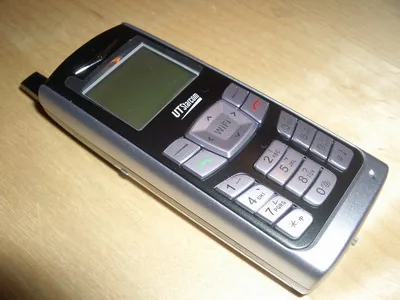
Configuring it for Asterisk
Well, configuring it on the asterisk has its little trick. Because I don't usually use a couple of parameters that are essential for the tlf to be able to register as a SIP extension. Here I give you my configuration in the sip.conf file:
[ebosc112]
type=friend
username=ebosc112
secret=ebosc112
host=dynamic
dtmfmode = rfc2833
callerid = "ebosc112" <112>
context=sip
mailbox=112
context=usuaris
defaultip=192.168.27.122
I don't usually set the defaultip on any SIP extension, but because the tlf, when we make many jumps between APs, sometimes ends up unregistered from the PBX, that helps me so that it can receive calls even though it isn't registered. Even though it solves the problem of receiving calls, it doesn't help fix the problem of not being able to make calls because it isn't registered, and you have to switch the terminal off and on again. Lucky it's fast, about 20sec.
When you configure the tlf you have to do everything normally, just as the manual explains; I'll only comment on the part about configuring SIP, which is where it gets a bit more complicated.(I tell you my configuration)
We go to the SIP configuration menu: MENU->WiFi Settings->Signal Protocol->SIP
We use IP to refer to the SIP server: SIP Proxy Mode->IP
We define the IP of the SIP server: SIP Proxy IP address->192.168.1.1
We use IP to refer to the SIP server: SIP Proxy Mode->IP
We define the SIP user name: SIP User Name->ebosc112
Access word for the SIP server: SIP Authentication String->ebosc112
Access keyword for the SIP server: SIP Password->ebosc112 to enter this word there is a 'trick', since at first the tlf asks you for a numeric code that will be shown on screen with '*' the unlock code, to be able to write the 'password' you have to enter '888888'. Then it will jump to another screen that will let you write the password.
Well, all the trouble came from the fact that this last little detail I've mentioned wasn't in the manual and I found it in the UTStarcom user support forum. A sweat to find that ;)
Roaming
As you know what really matters to me is being able to keep hopping between different APs without the calls being cut. Well, despite the great result obtained with the Cisco 7920 this terminal takes a bit longer to make the AP change and for at least about 5s packets are lost and the voice of the call is lost, although luckily the call isn't cut.
I've also done a somewhat more radical test, which is that when I'm under the coverage of two APs, if I switch one of the APs off I've verified that the call is cut and that the phone doesn't register again until we switch it off and on again.
Assessment
Although it works well enough and the calls sound quite good and the battery performance is very good. It must be said that after handling the Cisco 7920 you notice that the UTStarcom F1000 costs 1/5 of what the Cisco does. Although, as I say, it's a very recommendable terminal, since the quality-price ratio is very good.
The next goal is to try the Zyxel, which according to what Xoli told me, at MicroBR they have it on a super-special offer for 130¤, thinking that before it cost more than 300¤ the difference is substantial... well, I'll tell you when I try it.
1 comment
Comments from the old blog, as they were written. Comments are closed.
Carita
ebene mpgs ^@^ envie lesbienne ^@^ flickor urinerar i badrummet ^@^ live klipp ^@^ biseksuaalinen filmi ^@^ kiva poliisi toiminta ^@^ femme fait pipi au lit ^@^ jeune pute dans la chambre ^@^ amator dritt pa rommet ^@^ ryper kjonnet i sengen ^@^ vrouw piss in bad ^@^ heet tiener ^@^ kuumin mallit ^@^ taydellinen hetkellinen ^@^ papa videos ^@^ quarante menue ^@^ perversioni con cacca ^@^ bramare bionde ^@^ koel upskirts ^@^ lol videos ^@^